

File Management for Music Production
While file management may seem tedious and isn’t the most exciting thing when it comes to music production, it’s something that should always be part of your workflow. In this guide, we’ll discuss different storage mediums and how to effectively manage your plugins and sample libraries so nothing gets lost and your computer performs at its best. Follow the sections below to get started.
- Hard drives and file management
- Where to save your DAW projects
- Where to install plug-ins, virtual instruments, and sample libraries
- Back up your files
Hard drives and file management
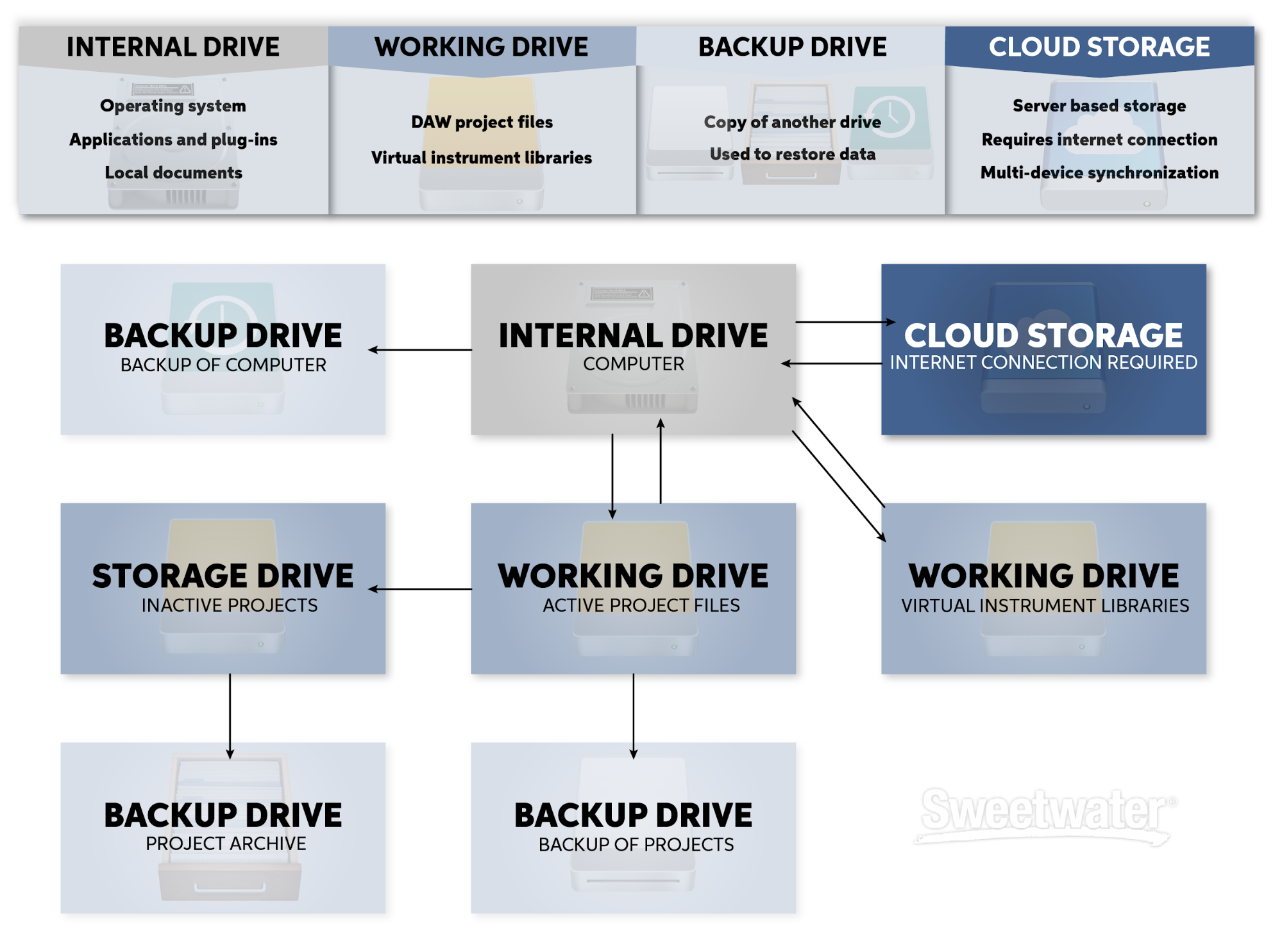
Let’s first get started by understanding how hard drives work with your music software. Hard drives are used to store all kinds of files for all types of purposes; your computer’s internal hard drive stores the operating system, applications, and any data created in the user account or shared folders.
You can also connect external hard drives to store files, so they don’t take up room on the computer’s drive. A dedicated working drive is exclusively used for projects you’re actively working on. Having a backup drive enables you to recover your saved data in the event it needs restoring. On top of all that, hard drives can always be used for the general storage of miscellaneous files or backups.
Shop All External Hard Drives 💾
Internal hard drives
Your computer’s internal hard drive stores the operating system and user files. Depending on your computer, most won’t run out of storage unless you save a lot of large files to them, like videos, DAW projects, and virtual instrument libraries. Use external drives for storage, so you store less data on the internal drive and don’t compromise performance. For the internal drive, stick to software apps, plug-ins, and the minimal necessary photo and video files. Move anything else to an external storage drive. Laptops often have smaller storage capacity, so having an external hard drive is especially useful if you’re using it for music production.
Working hard drives
DAWs read and write high-quality audio files at speeds, which can take up a lot of the internal drive’s bandwidth. Using a separate Working hard drive for these files moves the workload off of the computer’s internal drive and improves its read/write efficiency. A dedicated high-performance drive is ideal for a main working drive, and there are many reliable data storage manufacturers on the market. Computers built with internal rotational disk drives can especially take advantage of using a faster disk or solid-state working drive for their projects.
Backup hard drives
External hard drives are great for backing up your DAW projects and audio, archiving your work, and can also be used as backup drives to restore your computer. If your PC or Mac were to crash or require reset, the backup drive would restore it to the last backed up state. Disks used for backups are typically used for this one function, but can be reformatted in the event the backup is no longer required. Most people benefit from having at least one backup drive per computer for peace of mind and easy restoration. Learn more about how to back up your system and its files on our knowledge base guides for Windows and macOS.
Security and RAID drives
RAID enabled drives can distribute your data across multiple drives, allowing you to access your data even after one of the drives fails. Think of it as combining multiple hard drives and turning them into one massive hard drive. RAID isn’t always necessary but can be a reliable friend, particularly when working with a large amount of studio projects and files.
Cloud-based storage
You can take advantage of cloud-based storage such as OneDrive and iCloud, as well. Using cloud storage is especially useful for archiving, and for those that travel often and can’t carry external hard drives around. One important thing to remember is to turn off your cloud storage’s auto-sync feature while working on a project, as it can often reduce system and DAW performance.
Where to save your DAW projects
Everybody’s workflow is a little different, but saving your DAW projects to the same location and having a consistent naming scheme will always set you up for success. While there isn’t a problem creating a single ‘storage’ folder (i.e. DAW projects), creating subfolders will help keep things much more organized.
Using multiple DAW’s: If you use multiple DAW’s, consider creating a folder dedicated to that particular DAW. An example of this is creating this folder hierarchy: Cubase Studio Projects/Month & Year/Active Projects/Album Title/Song Title.
Archiving projects
Along with an Active Projects folder, another thing you should consider creating is an Archive folder. Once you’ve completed a project, move that project folder with its containing data, as well as two versions of the final bounce; one pre-fader and one post-fader. This will help clean up the clutter and let you focus on getting other projects done. While you can create it on your working drive, it’s better to place your archived projects on a backup drive for long-term storage.
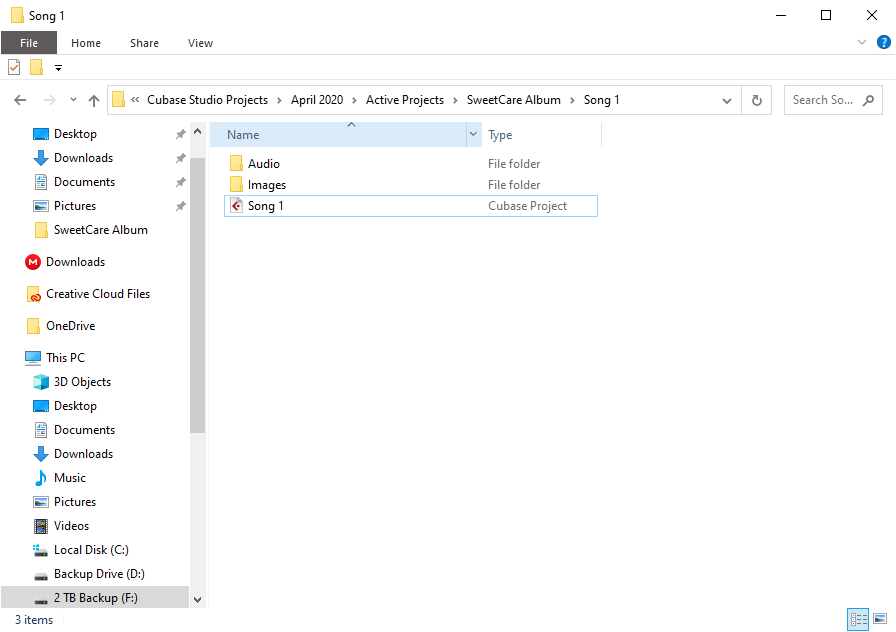
DAW Project folder hierarchy.
Where to install plug-ins, virtual instruments, and sample libraries
It’s always smart to store your virtual instruments, sample libraries, and plug-ins all in one place on a dedicated hard drive or hard drive partition. Moving or deleting just one file from a virtual instrument library or plug-in folder could result in having to uninstall and reinstall the software. That can be a cumbersome task, too, especially with large sound libraries or if you need to redownload and have a slow internet connection.
Create folders on a dedicated external hard drive or hard drive partition: Audio samples and Virtual instrument libraries. The reason being is that during the installation, you’re typically prompted on where you would like to install the file(s) to. Just select one of those folders, and you’ll be all set.
TIP: Most virtual instrument sample libraries use a proprietary file format. For example, Toontrack library samples use the .obw file extension. This often means you won’t be able to use them unless the correct plug-in is installed. You can, however, install the plug-in file and sample libraries in separate locations.
Software plug-in directories
DAW’s search specific directories to access effects and virtual instrument plug-ins. There are default folders for Windows and macOS, depending on what plug-in format is being installed. There are a few things to consider when installing plug-ins:
Windows VST plug-in locations
Depending on the plug-in manufacturer and the VST format (VST2, VST3, 32bit, and 64bit), there are quite a few default installation locations for Windows. If you have a lot of plug-ins and they’re all scattered around, it can be like trying to find a needle in a haystack. So, creating a parent VST 32bit and VST 64bit folder, then installing to those directories will make it easy to find when scanning them in your DAW. Mac users don’t need to adjust their directory as all are installed in the same location.
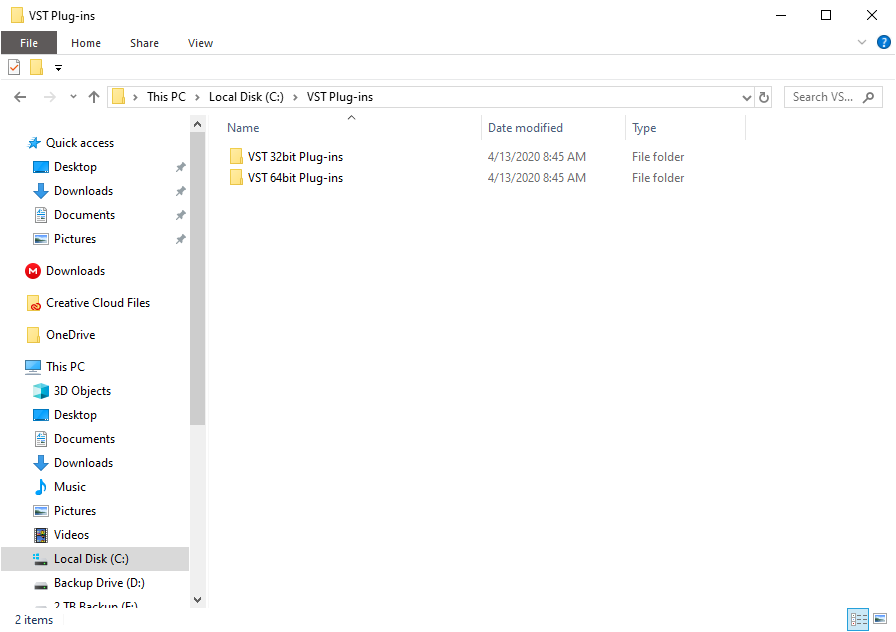
Create a dedicated VST Plug-in folder on Windows for easy access.
Pro Tools .AAX plug-in location
Pro Tools uses the .AAX plug-in format. While virtual instrument sample libraries can be installed to another hard drive, the .AAX plug-ins must remain in the same location for it to load in Pro Tools.
- Mac: /Library/Application Support/Avid/Audio/Plug-Ins
- Windows: C:\Program Files\Common Files\Avid\Audio\Plug-Ins (AAX)
Virtual instrument and audio sample libraries
Many virtual instrument plug-ins require separate sample libraries to produce sound. Sample libraries include high-quality audio files that must be synchronized in the plug-in’s settings. These sample libraries are often large, so it’s best to store them on a high performance external hard drive. The same is true for custom audio sample libraries.
For example, if you’ve gathered a plethora of custom drum loops and sound effects, you’ll definitely want to store them all in one place. For even better file management, create parent folders called Virtual Instrument Libraries and Audio Samples, then create a subfolder with the sample library’s name (i.e. drum loops, Native Instruments libraries).
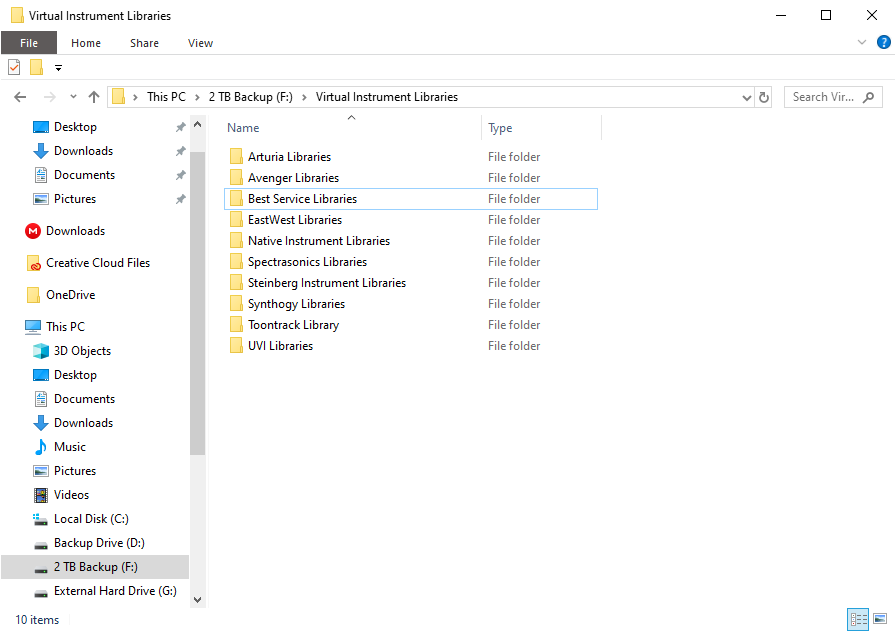
Create a dedicated virtual instrument library folder.
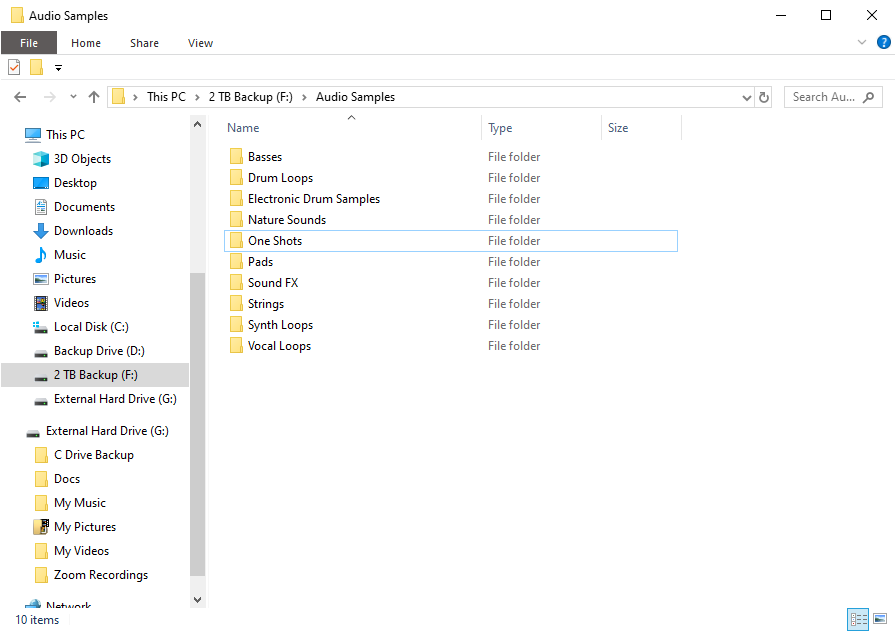
Create a dedicated audio samples folder.
Back up your files
Backing up your files is easily the most important thing when it comes to file management. If you don’t back up your files and your computer crashes, or a hard drive fails, you’re going to lose some, if not all, of your data. You may have heard of the “Rule of Three” (or 3-2-1 rule) when people talk about backing up files. This essentially means that if your data doesn’t exist in three places, they don’t really exist. This is how the “Rule of Three” works:
- Have Three copies of your files.
- Back up two of the copies on two separate mediums, such as a secondary or external hard drive, thumb drive, cloud, etc.
- Take one copy offsite. For example, keep your backup external hard drive at the office or have a copy on the cloud.
While you should try sticking to the “Rule of 3”, making at least one external back up, be it an external hard drive, thumb drive, or the cloud will give you peace of mind in case of a failure.
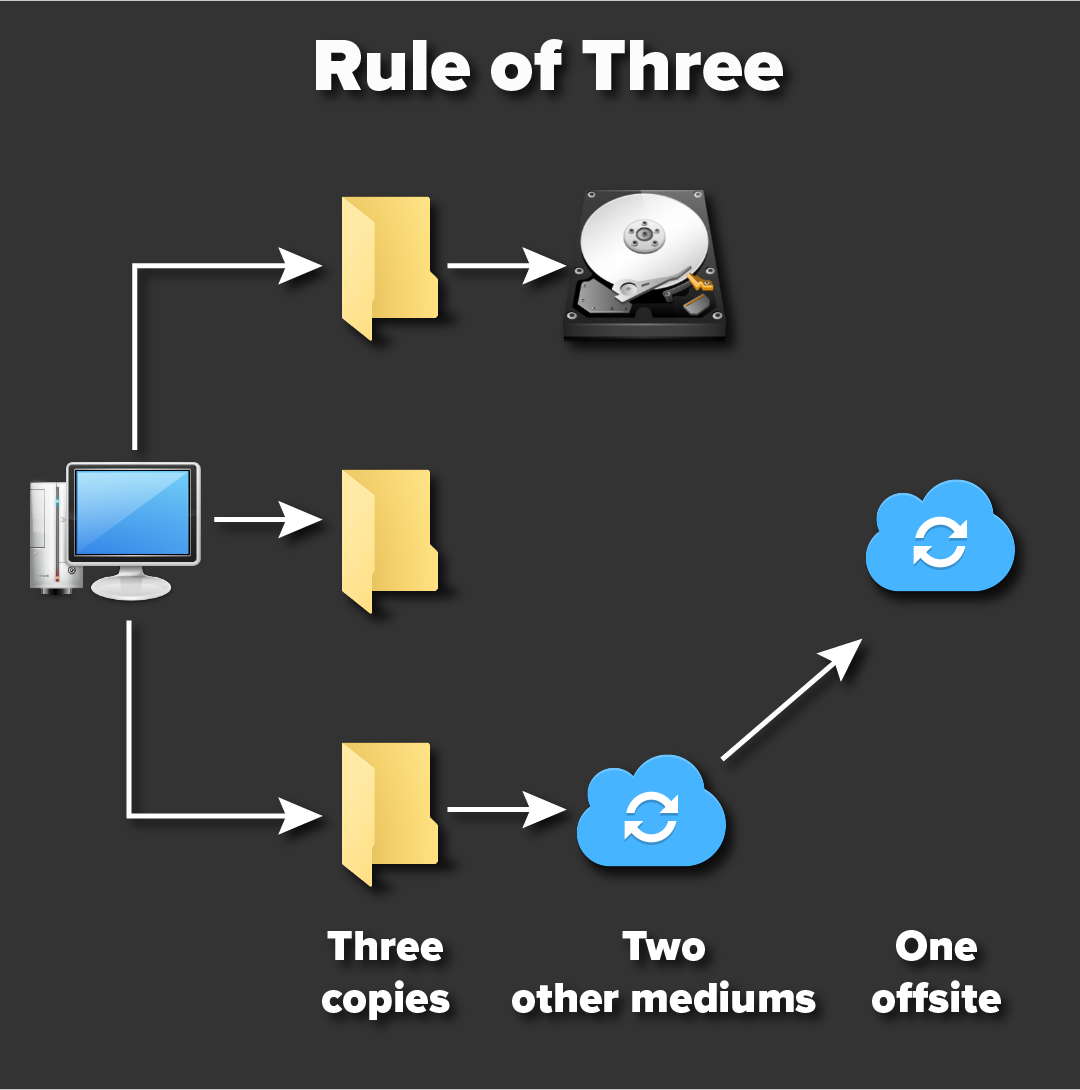
Rule of Three flowchart.
Backing up DAW projects
Most DAW’s nowadays allow you to create a backup of your project without continually needing to copy and paste files and folders. Some also automatically remove any unused audio in the project such as recorded audio that has been deleted, which helps minimize the file size. While there’s no hard and fast rule as to how often you should back up your project files, the more frequent, the better, especially when you’re near completion.
Related Articles
When you need help, Sweetwater has the answers!
Our knowledge base contains over 28,000 expertly written tech articles that will give you answers and help you get the most out of your gear. Our pro musicians and gear experts update content daily to keep you informed and on your way. Best of all, it’s totally FREE, and it’s just another reason that you get more at Sweetwater.com.


